1
Open Settings
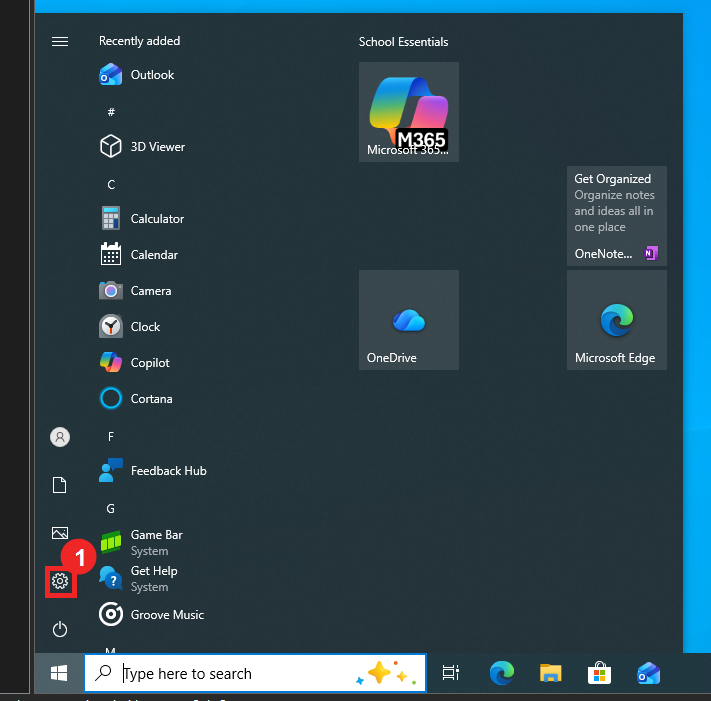
Open the Start menu and click the settings cog.
When Windows asks for phone activation, submit the Installation ID and enter the Confirmation ID.
Use this when online activation shows an error and Windows offers Activate by phone.
Activation works best when each step is completed exactly as shown. Do not skip ahead, and keep this page open until you reach the phone activation screen and submit the Installation ID.
Open the Start menu and click the settings cog.
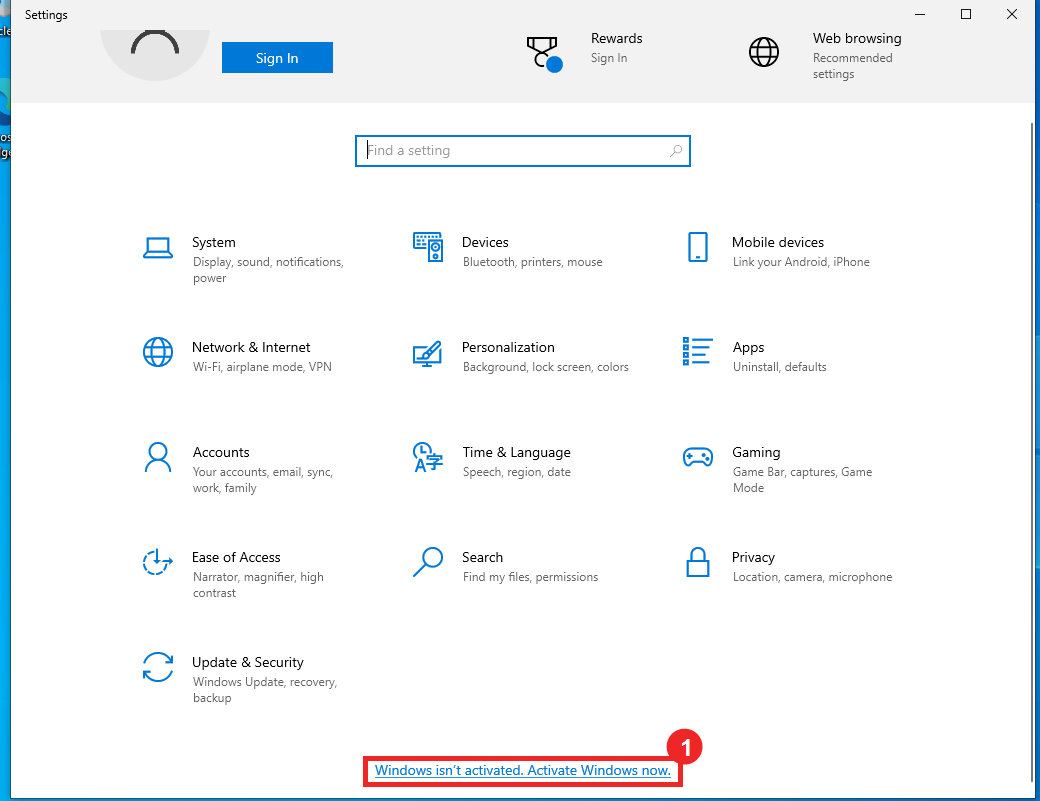
Click the Windows isn't activated link at the bottom, or type Activate Windows in the search box.
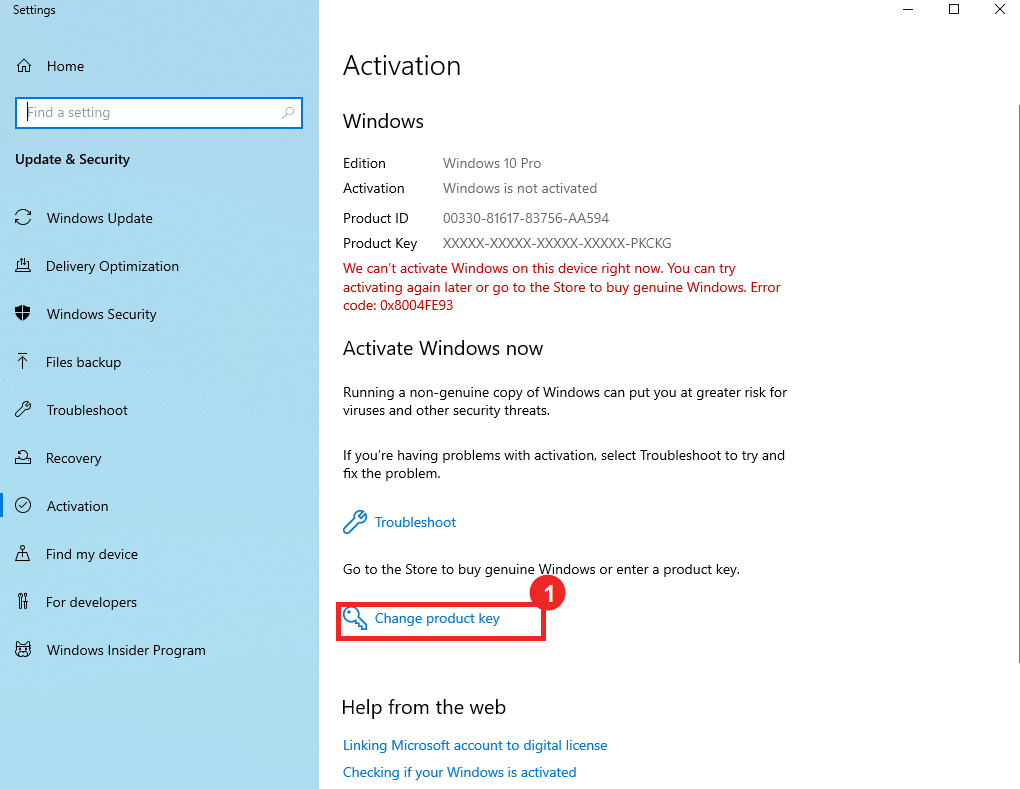
Click Change product key, Change, or Activate product key. The wording can vary between Windows versions.
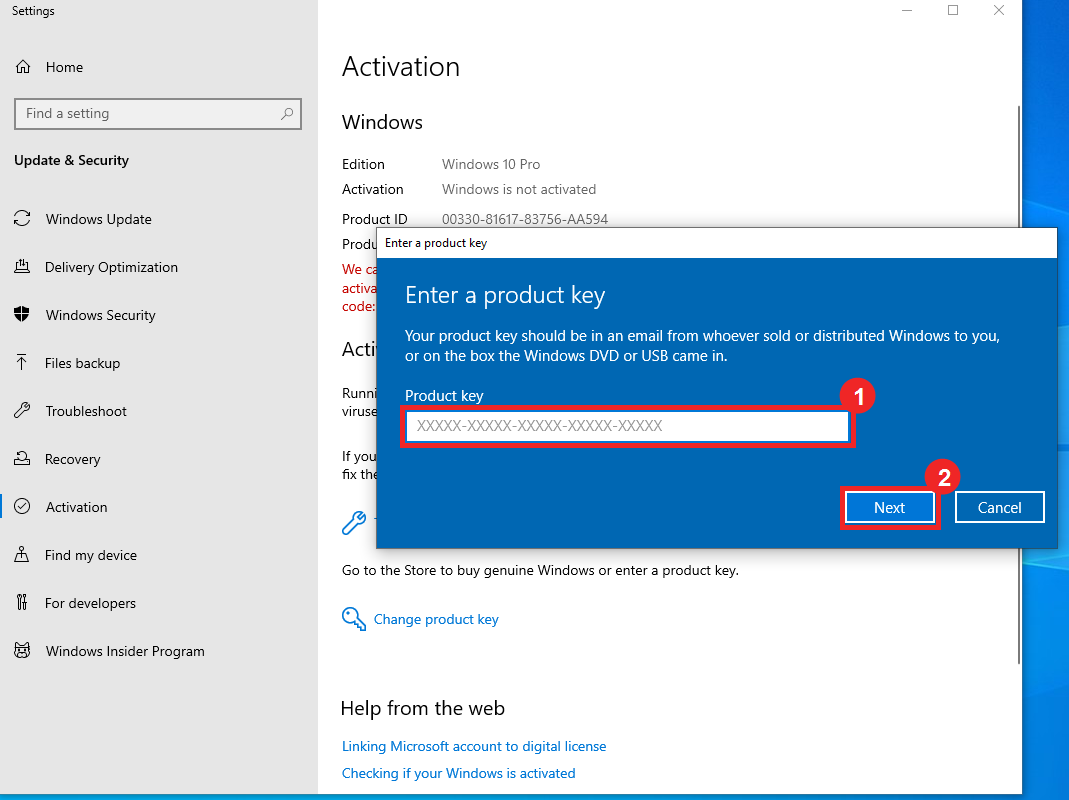
Paste the product key from your private order page into the Product key field, then click Next.
Use the product key shown on your private order page. Keep that page open while you complete these steps.
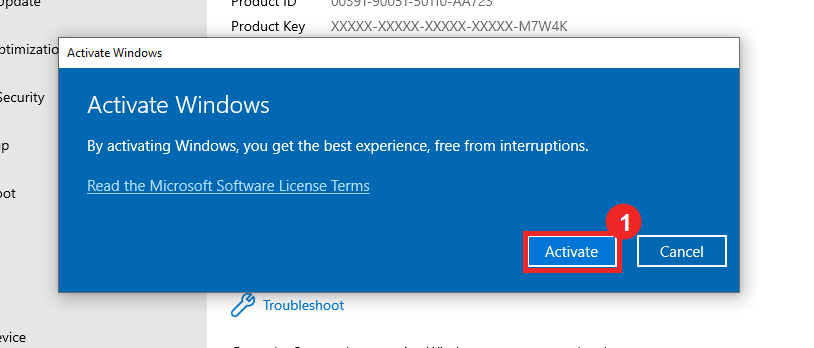
Click Activate. This attempt is needed so Windows shows the phone activation path.
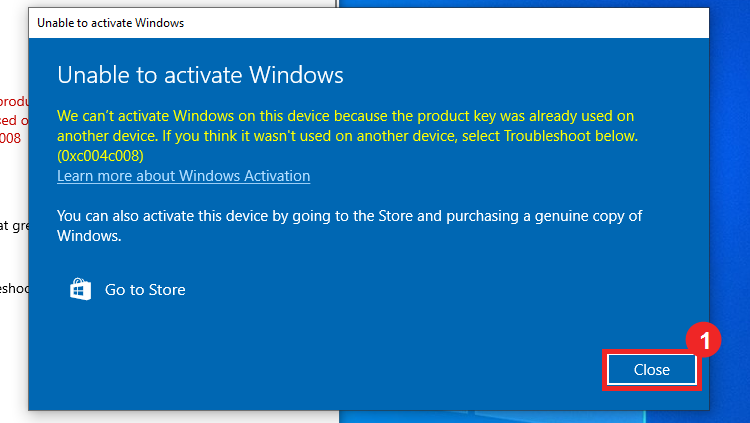
This error is expected. Click Close and return to the Activation page.
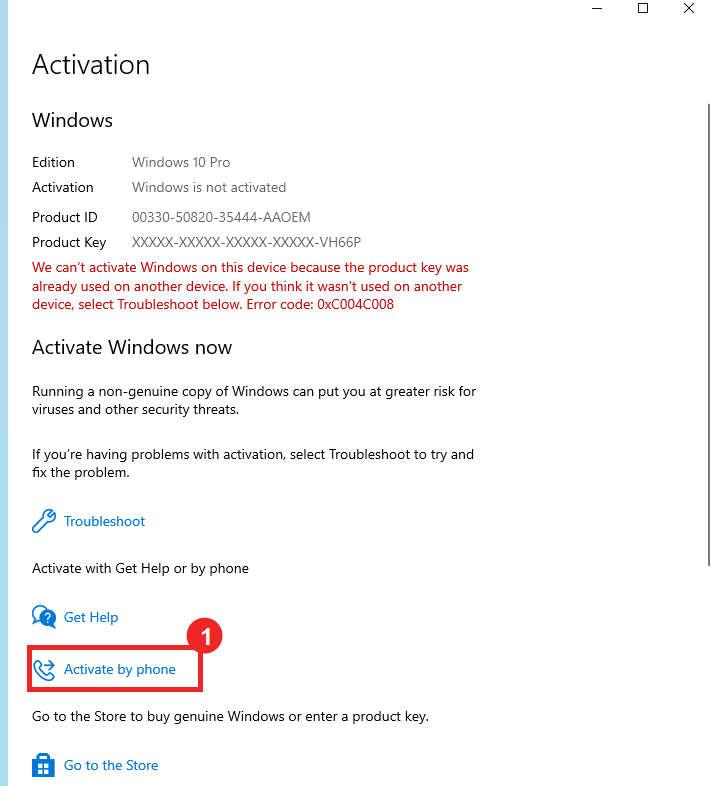
Click Activate by phone.
Any country or region can stay selected. Click Next.
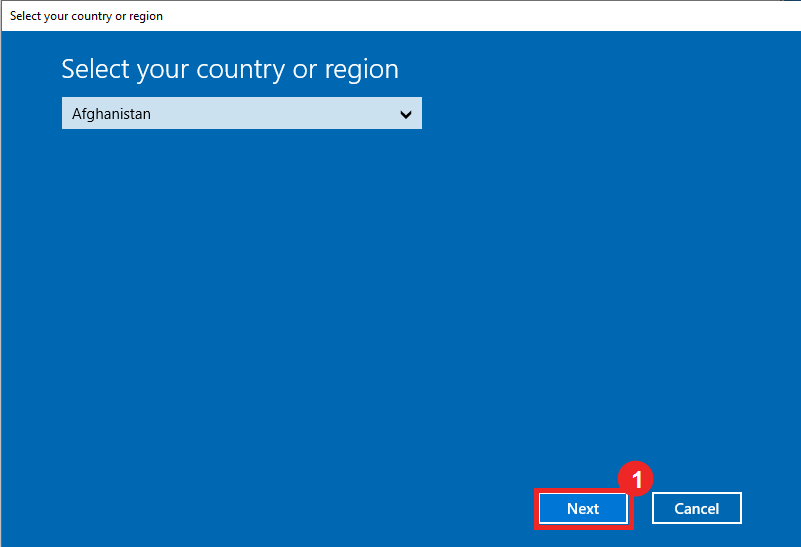
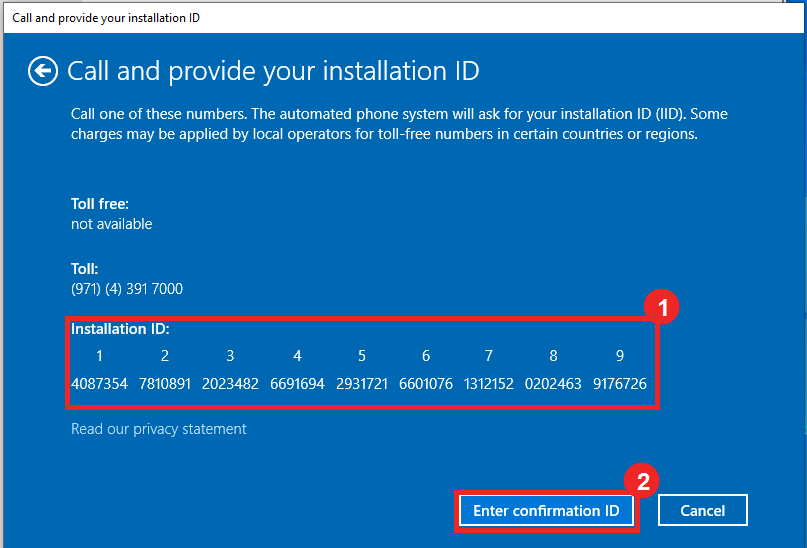
Take a screenshot of the Installation ID screen or copy the numbers. Submit it on your private order page, then return to Windows and choose Enter confirmation ID.
Tip: press Windows key + Shift + S to capture this activation window, then paste the screenshot here.
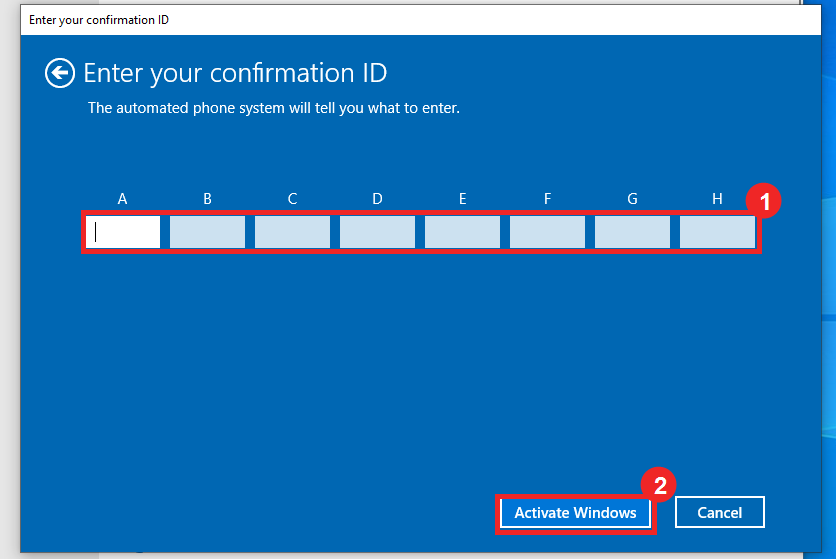
Enter the CID from our service into boxes A-H, then click Activate Windows.
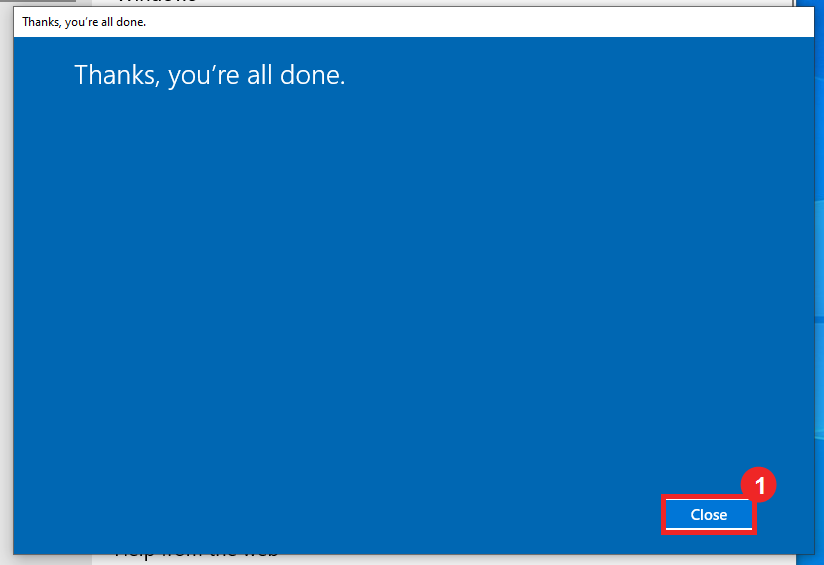
When you see Thanks, you're all done, click Close. Windows activation is complete.